Strapi Master Divyesh Standard Template to create any article or FAQ,
Red Blue Green Yellow Orange Purple Pink Cyan Magenta Lime Gold Deep Pink Chartreuse Aqua Fuchsia Orange Red Spring Green Turquoise Dodger Blue Crimson
Red Blue Green Yellow Orange Purple Pink Brown Black Gray Cyan Magenta Gold Silver Lime Indigo Violet Navy Maroon
[ Refresh]
---
[ Refresh]
[ **Refresh**]
[ Refresh]
[x] Task 1 (Completed)
[ ] Task 2 (Pending)
Here is a reference^1 .
Here is a reference^2 .
Here is a reference^1^ .
Symbol Here are more useful symbols for FAQs:
🎨
you may find this useful : 🔍
This is a quote or an important note.
📝 Notes → Important general information.
ℹ️ Instruction → Step-by-step guidance.
📌 Important → Key points to remember.
📖 Reference → Additional resources or documentation.
🔗 Link → External or internal links for more details.
🏷 Category → Indicates classification or sections.
Warnings & Alerts
⚠️ Warning → Critical alerts or precautions.
❌ Error → Something went wrong; requires attention.
🔴 Critical Issue → Serious problem requiring immediate action.
🚨 Urgent → High-priority message.
⏳ Pending → Process is in progress.
🚫 Restriction → Something not allowed or disabled.
Solutions & Fixes
💡 Solution → Suggested fix or recommendation.
🛠 Troubleshooting → Steps to resolve common issues.
🔄 Process → Ongoing steps or workflow.
✅ Success → Completed or successfully executed.
🔁 Retry → Try again if the first attempt fails.
Actions & Tasks
🖥 System Requirement → Needed software/hardware.
📤 Upload → Upload-related actions.
📥 Download → Download-related actions.
🔍 Search → Finding relevant information.
🗑 Delete → Remove or erase data.
🔑 Login Required → Sign-in necessary for action.
🔄 Refresh → Update data or reload the page.
Communication & Support
📞 Contact Support → Reach customer service.
📧 Email Us → Contact via email.
🆘 Help → General assistance needed.
📅 Scheduled Maintenance → Upcoming system updates.
🏢 Company Info → Business-related details.
Would you like symbols for any specific category? 🚀
Warning ⛔
⚠
⚠
Tick Mark
✅
✅
E-mail
✉
exclametry mark
❗
green Cross
❎
Red cross
❌
Question mark
❓
informatic i ℹ
⚠
⚠
Note ✍
Rocket 🚀
Color Code
Red -> Green -> Blue -> orange
code to open link in new tab
Login into Suvit
Login into Click Here
Font Size
H1 : for tittle use single hash "#"
H2 : for Second tittle use double hash "##"
H3 : For sub category us tripple hash "###"
H4 : 4 hash
H5 : 5 hash
H6 : 6 hash
For Bold Font
For bold use double ** astrik symbol at both end of the word
SUVIT
Bullet Point
Bullet Point : For bullet point use dash+space+content (- hi )
Drop down
Section 1 This is the content for section 1.
Section 2 This is the content for section 2.
Section 3 This is the content for section 3.
Drop down with Youtube video
Drop down with Youtube video. It will help you to install the Suvit Desktop application which is essential for fetch and to send the data.VIDEO
Drop down with multiple Images
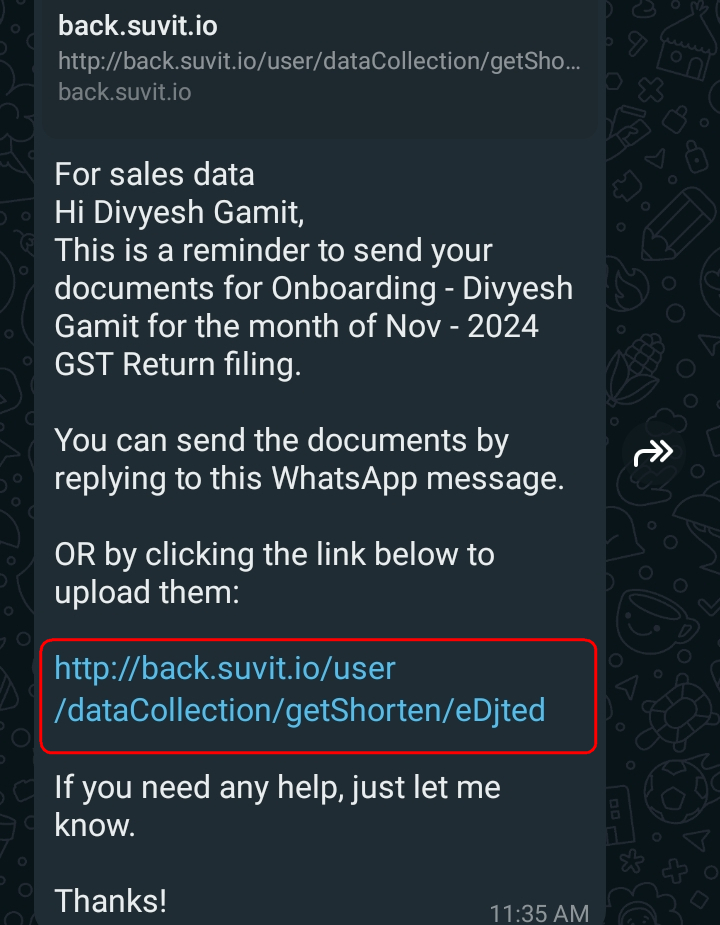
Drop down with multiple Images 1. Your client will receive the message as below given image. Client can simply click on the link or else he/she can reply to this message.
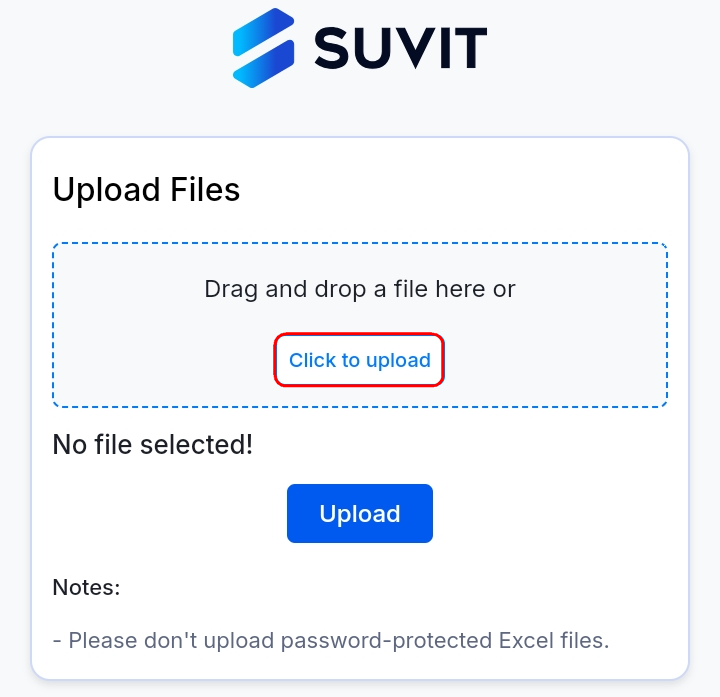
2. Client will be diverted to upload part
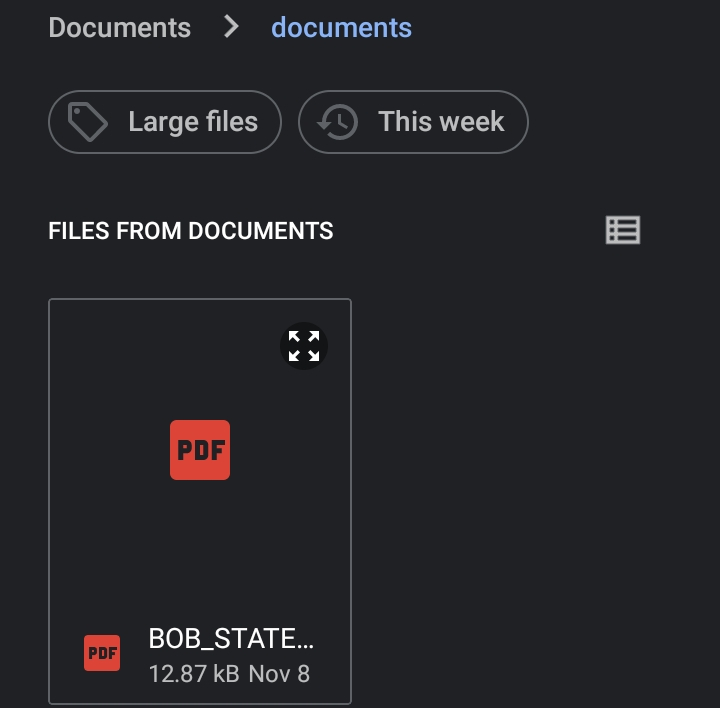
3. You can select requested file.
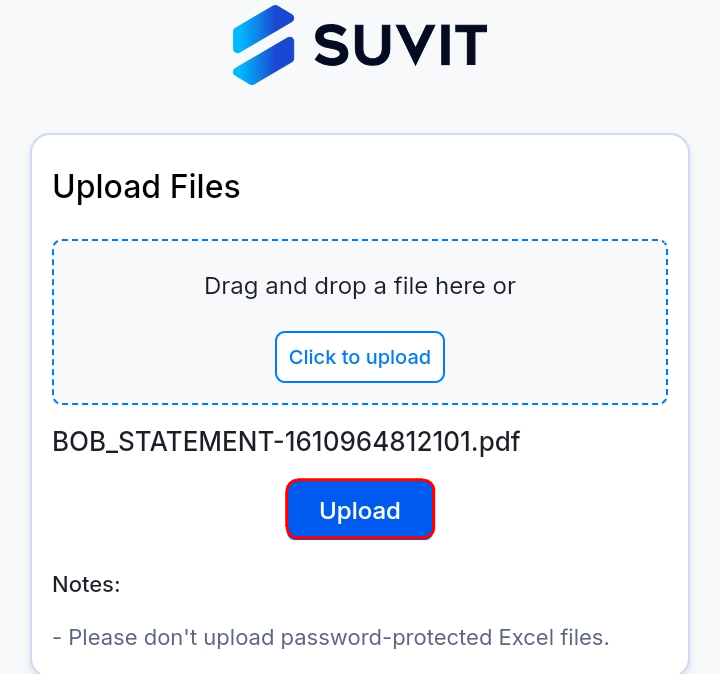
12 Click on Upload button to upload the file.
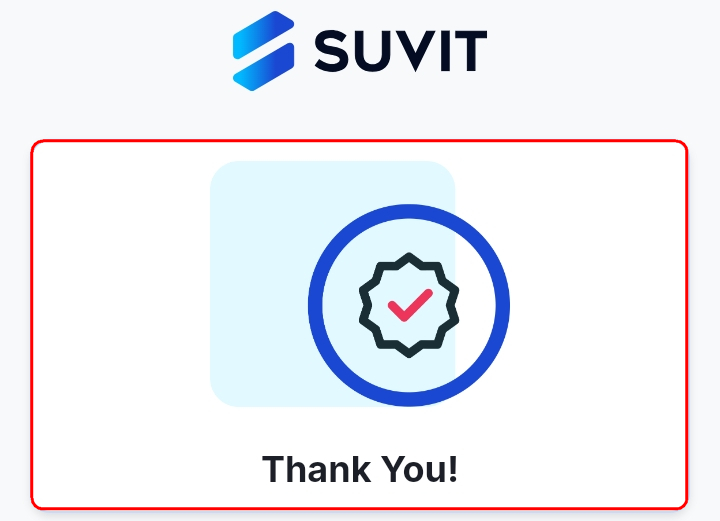
13 You will receive Successful message once the file is uploaded.
Drop down with image and bullet point
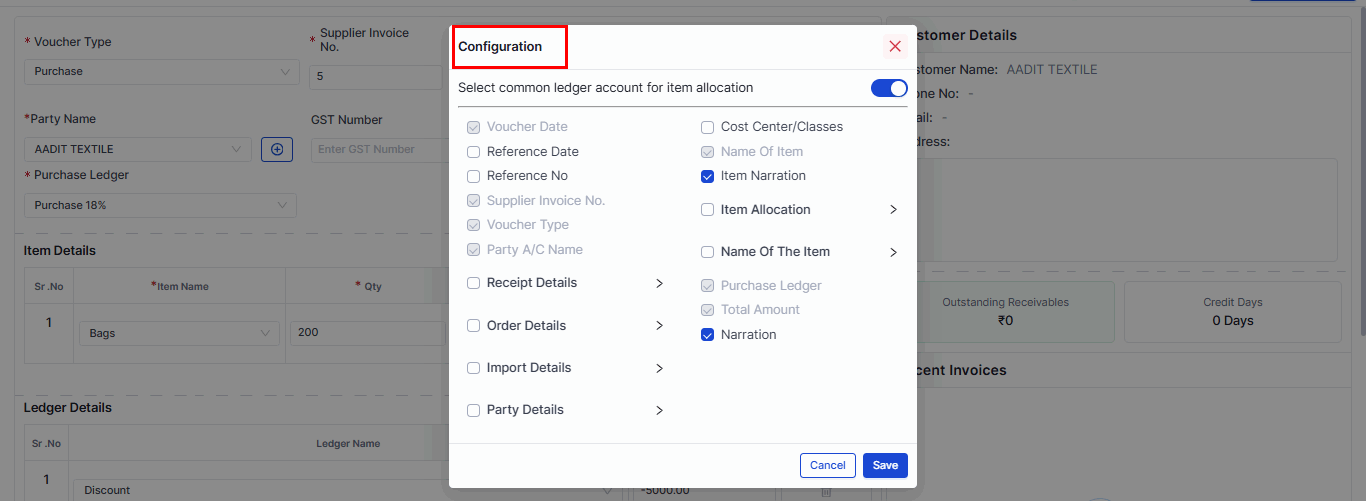
A. Configuration Options - Use the **Configuration Window** to select the fields displayed during voucher entry.
- Such as **Voucher Date**, **Supplier Invoice No.**, **Item Narration**, etc. Save the changes once done.
Drop down with Bullet point
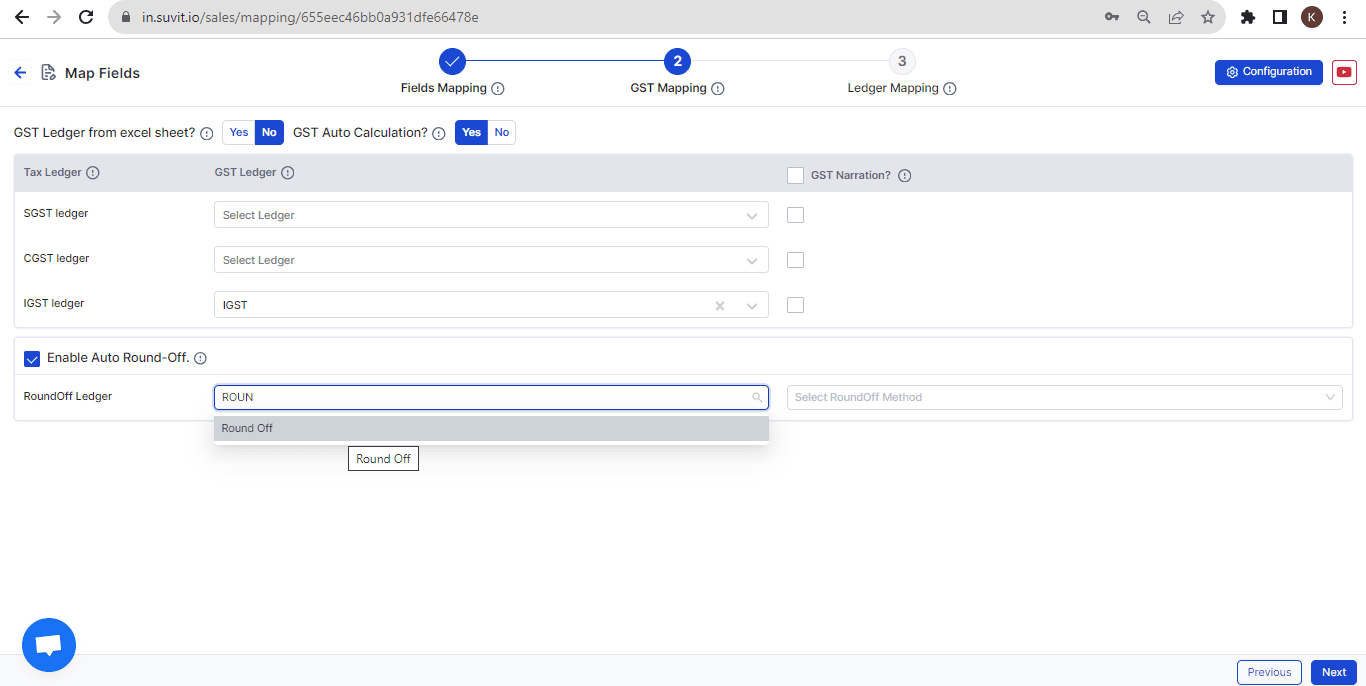
Select "No" for GST Auto Calculation select them here. Refer to the image below for understanding: select them here. Refer to the image below for understanding: Color Code
red block for warning message
Yellow block for **Note**
Blue block for**Instruction**
green block for **not decided**
Youtube
For you tube video use always embeded code - direct change the embed code in below link do not copy paste entire you-tube video
VIDEO
Sample Content
Think of a GST as a trusted advisor for businesses when it comes to all things GST. You'd be the person helping them:
Get registered under GST - You'll guide them through the initial steps.File their returns - Monthly, quarterly, annually – you handle it all!Claim refunds - You'll fight for their rightful money back.Represent them before the GST authorities - You'll be their advocate
Open Image in same tab
Open image in New Tab

Download FAQ as PDF
PDF
BoB (7).pdf
Download PDF
Download PDF
Download FAQ as PDF
Adhura download
Download PDF
Table
Heading1 Heading2 Heading3 Content 1 Content 2 Content 3 Content 1 Content 2 Content 3