With Item - Single Tax Rate - Common GST (Duties & Taxes)
Learn to manage bills with same tax rates and a common GST ledger. Follow step-by-step instructions to upload and map Excel sheets for smooth data entry.
If your bill has items with the **same tax rate** and uses the **same GST ledger (Duties & Taxes)**, you can enter it like this.
This works for:
- A bill with one item.
- A bill with many items (as long as all items have the same tax rate).
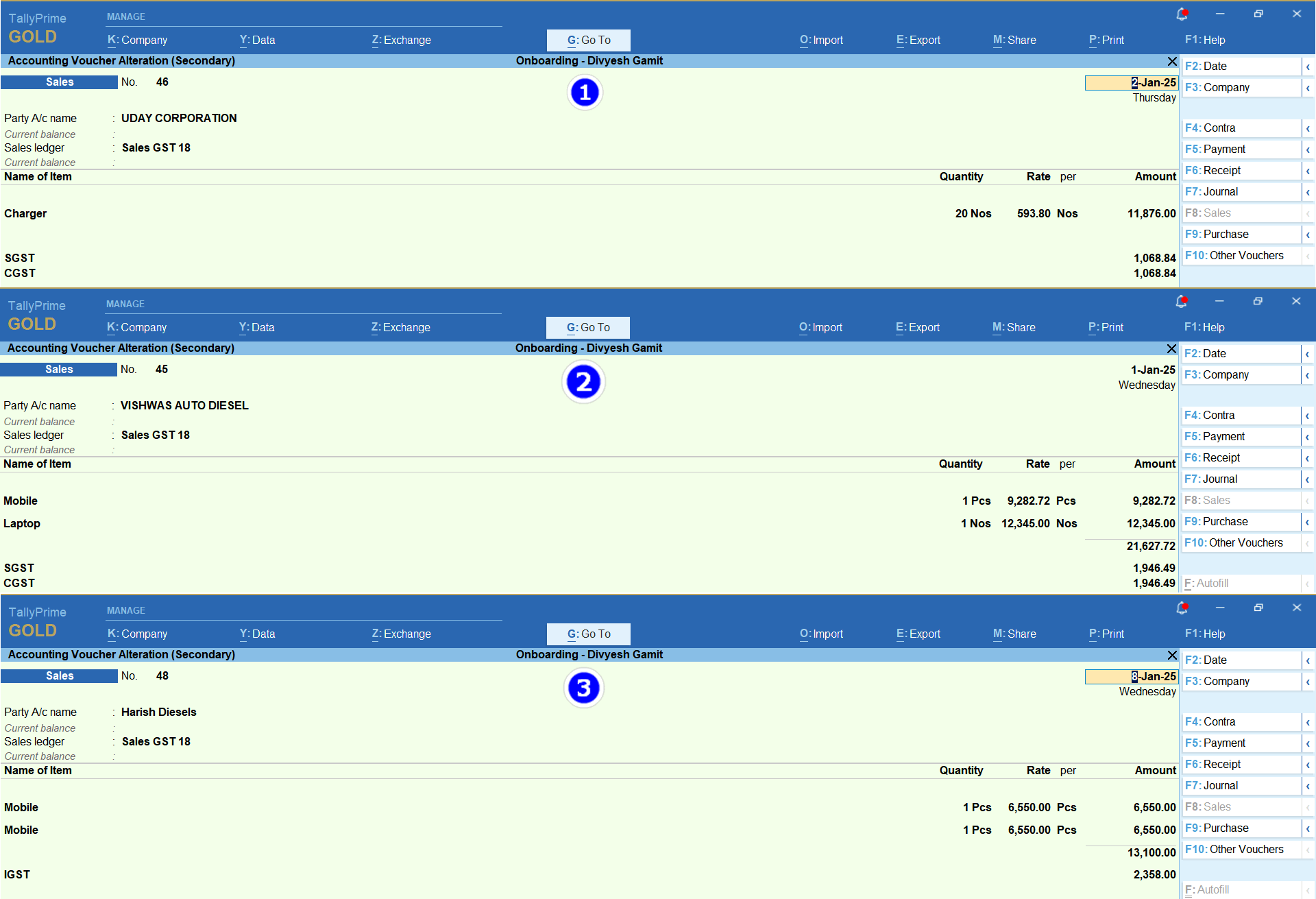
**Data requirement for excel sheet**

⇒ **You need at least 7 types of data in your Excel sheet for mapping:**
- 1. **REFERENCE NO:** A unique number for each sale.
- 2. **INVOICE DATE:** The date the sale happened.
- 3. **PARTY NAME:** Name of the client (as entered in Tally).
- 4. **SALES LEDGER:** The sales account name (GST Ledger).
- 5. **NAME OF ITEM:** The product sold (e.g., Mobile, Laptop).
- 6. **QUANTITY** or **Rate** (both cannot be mapped together).
- 7. **AMOUNT:** Total price before tax (Quantity × Rate = Taxable Amount).
⇒ **Not Mandatory list**
- 8. **GST NO:** Client's GST number.
- 9. **PLACE OF SUPPLY:** State or city where the item was delivered.
- 10. **SGST, CGST, IGST:** Duties & Taxes amounts (required only for **Manual Calculation**).
- 11. **TOTAL AMOUNT:** Grand total including taxes (for verification).
How to upload an Excel sheet:Click Here
Mapping
- Click on your file to open the Mapping Process.
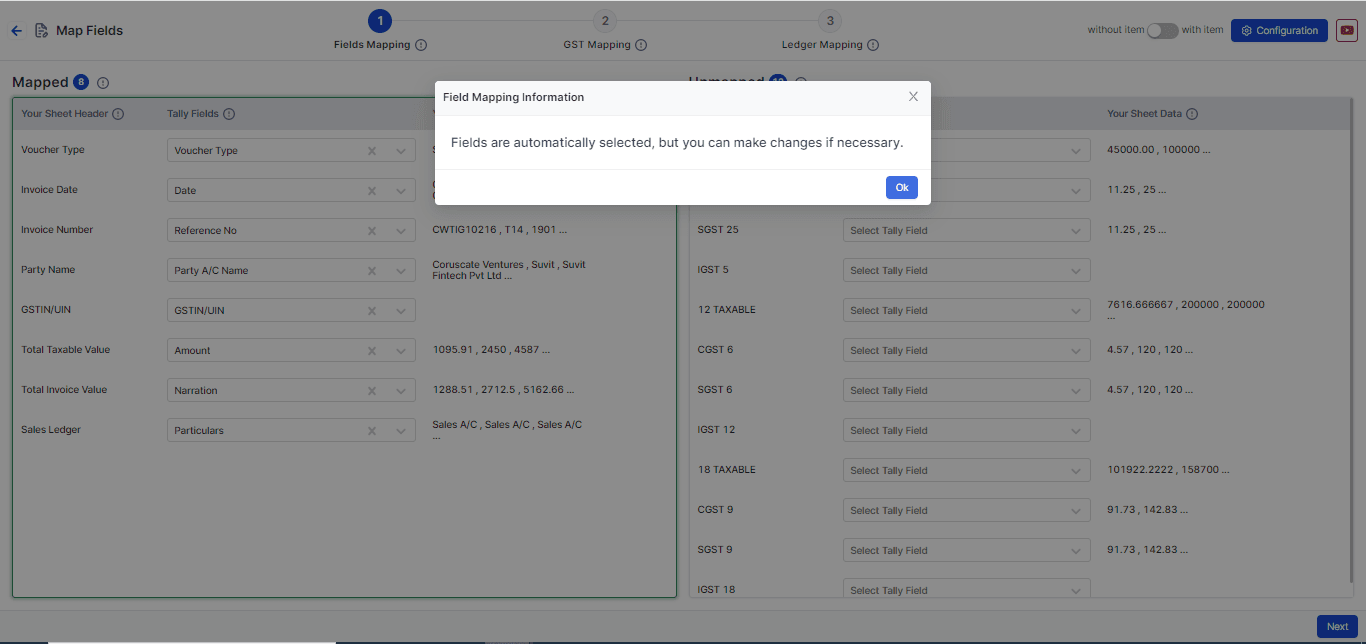
Step 1: Field Mapping
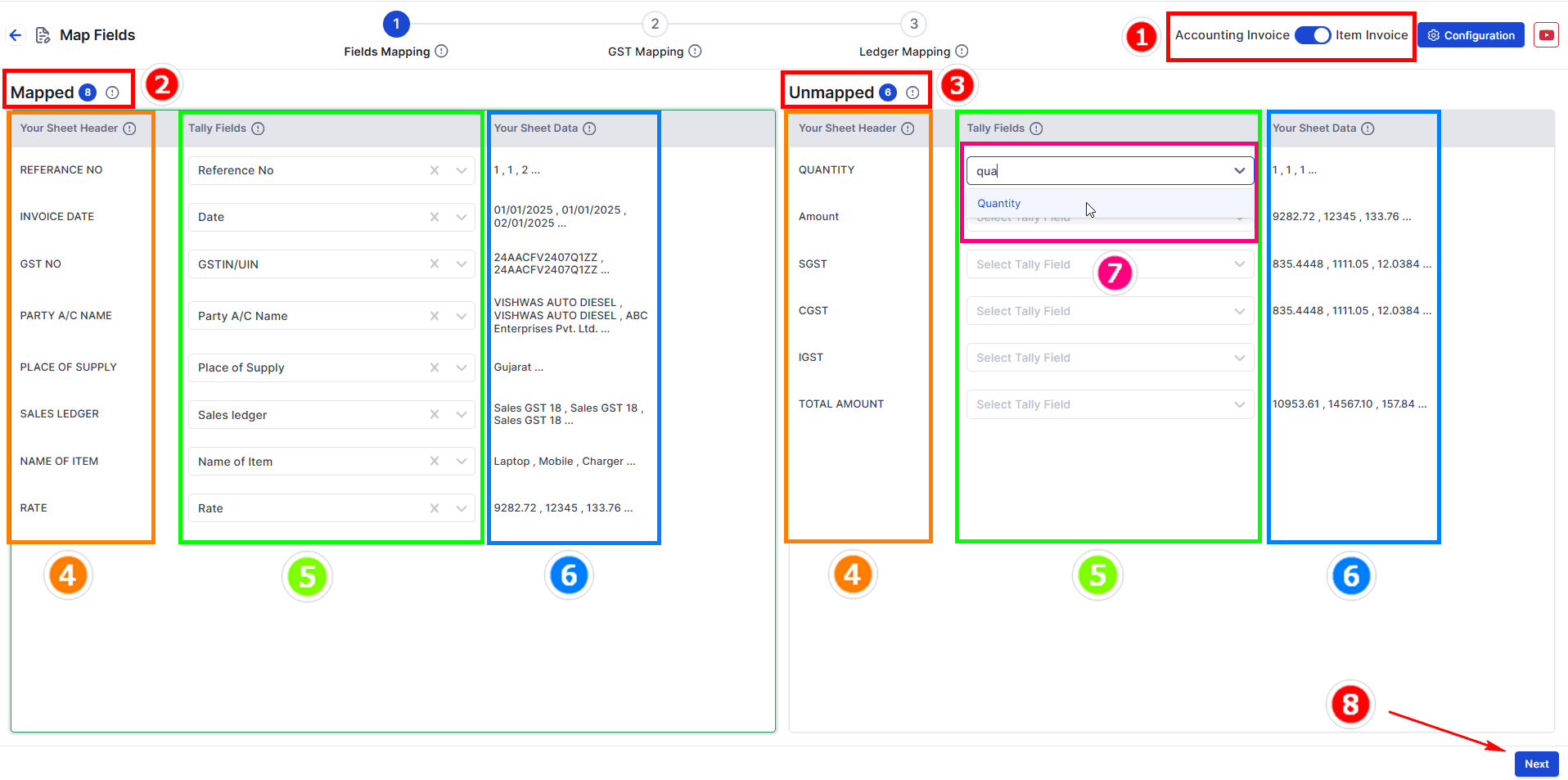
- Choose your data type: Select Item invoice.
- Mapped Fields: These are matched fields from your uploaded data.
- Unmapped Fields: Fields not yet matched. Choose the correct Tally fields for them.
- Your Sheet Header: Shows headings from your Excel sheet.
- Tally Fields: Fields matched with Tally. You can change them if needed.
- Your Sheet Data: Shows sample data for cross-checking.
- Tally Fields Selection: Choose the correct field from the dropdown.
- Press Next to move to GST Mapping.
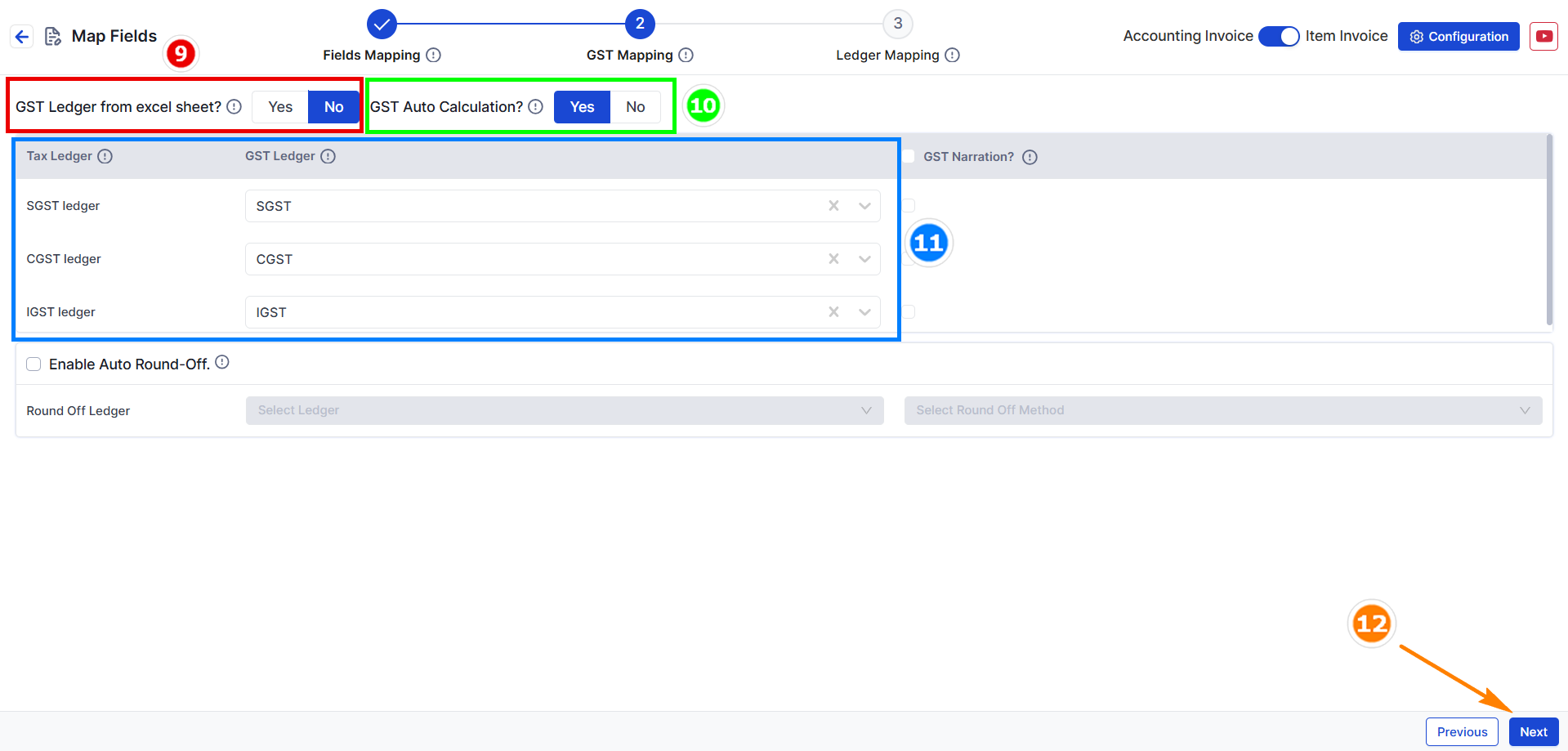
Step 2: GST Mapping (Map Your Tax Ledger)
--- OR ---
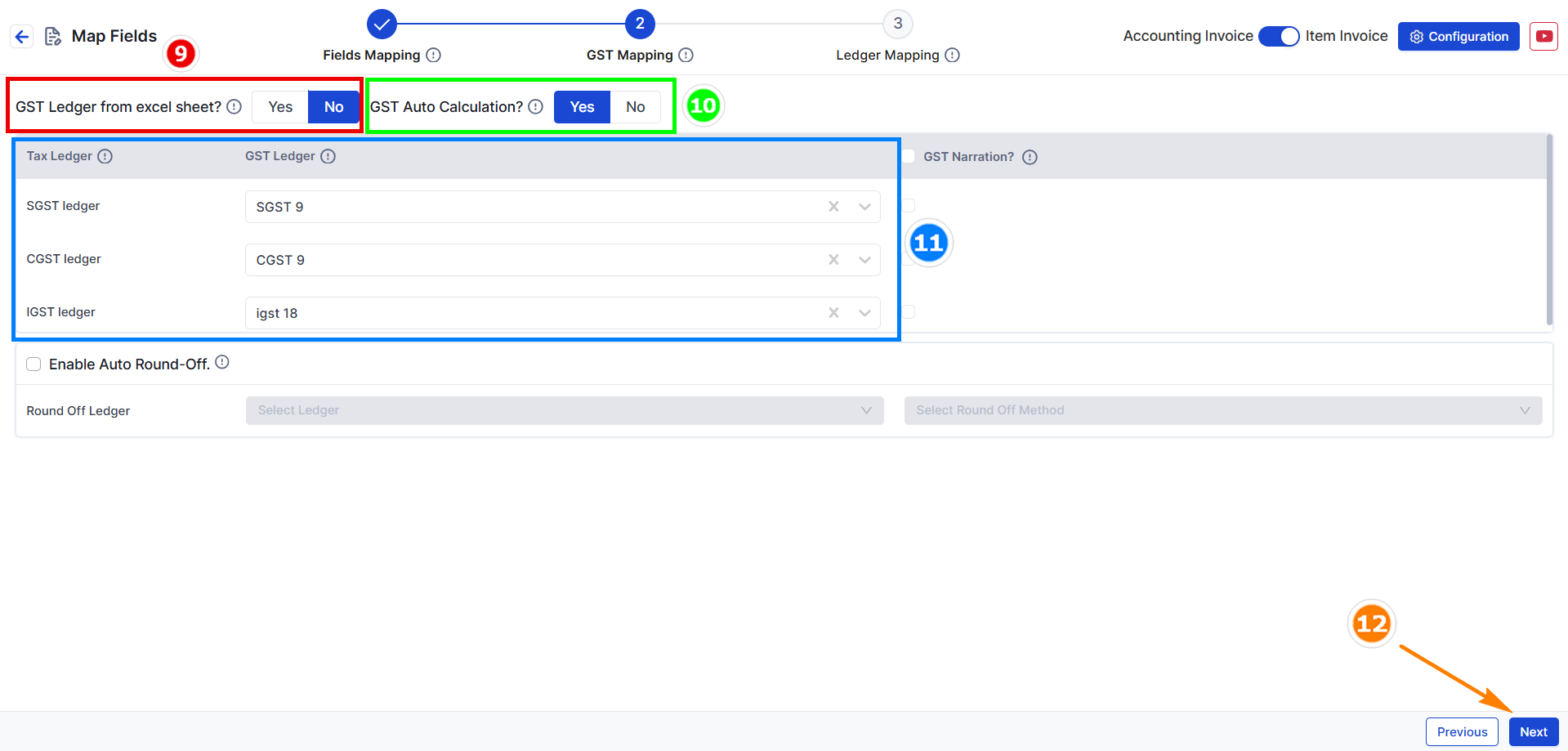
- GST Ledger from Excel Sheet: Keep this as it is.
- GST Auto Calculation: If GST rates are already defined in Tally, leave this setting as it is.
- Duties & Taxes: Choose a common Duties & Taxes ledger.
- Example: For an 18% GST rate, select SGST 9, CGST 9, IGST 18.
- Press Next to move to Other Mapping.
How to pick Duties & Taxes amounts from the Excel sheet:
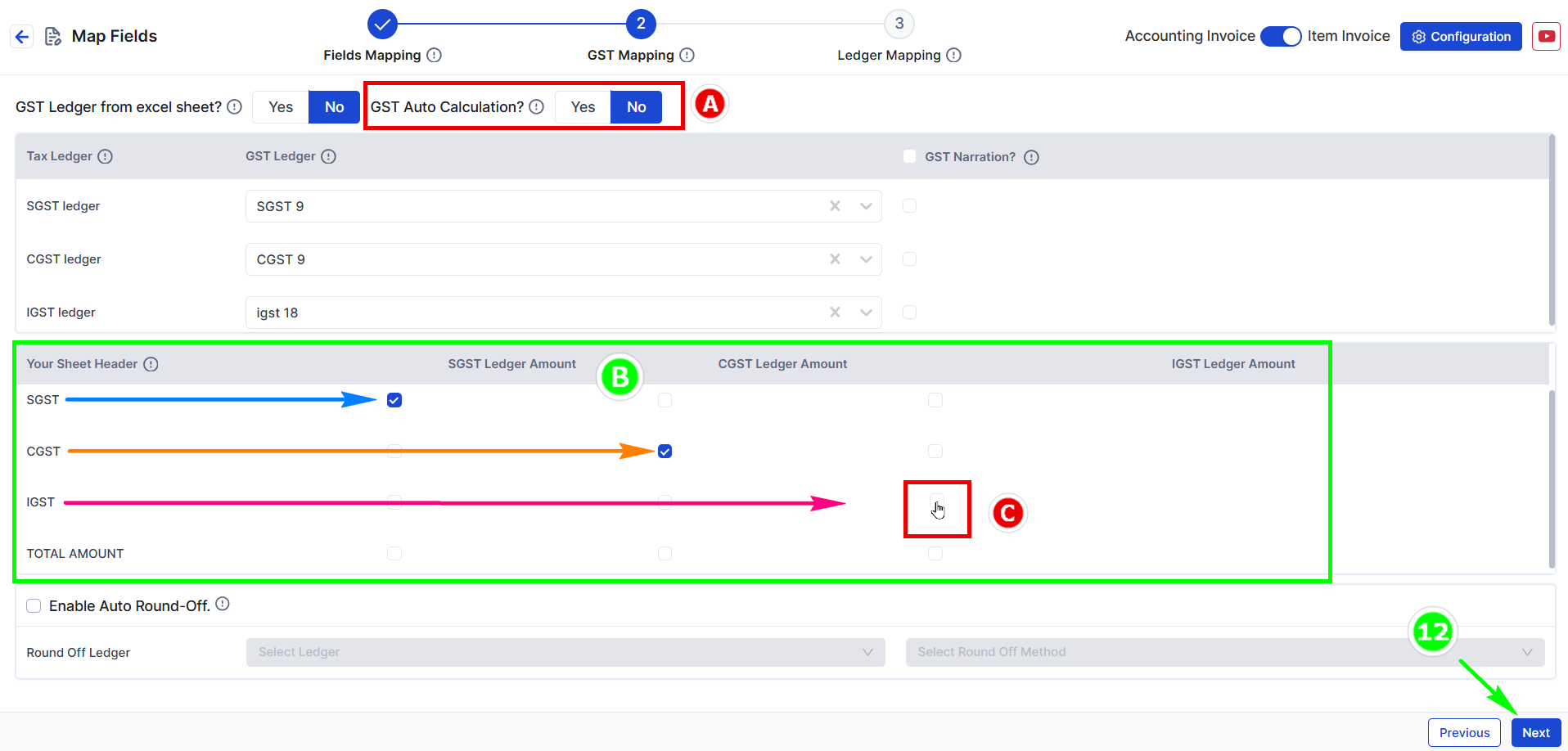
- A. Manual Calculation: If you click NO, pick the Duties & Taxes amounts (SGST, CGST, IGST) from your sheet.
- B. Tick-mark the tax amounts: Use the tick option to assign Duties & Taxes amounts.
- C. Verify amounts for SGST, CGST, IGST from the sheet.
- Press Next to move to Other Mapping.
**Note:** SGST, CGST, and IGST Tax Ledgers are mandatory. You can also map the round-off ledger.
Step 3: Ledger Mapping
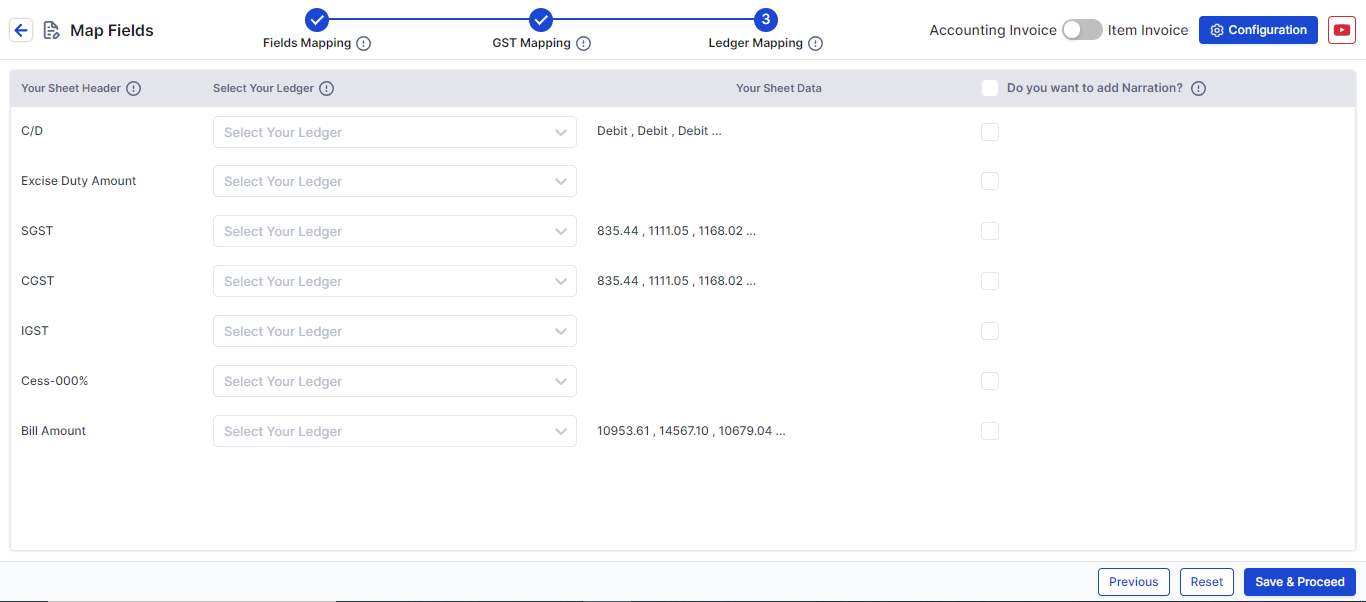
- In this step, map additional fields such as Discount or Freight Amount by selecting the appropriate Excel header and Tally ledger.
Click Save & Proceed to finalize the process.
This format will be saved for future uploads in Suvit.